Dragoneye lets you create zero-shot image and video detection models by describing the objects and attributes you care about, with no training data required. From that natural language schema, we build the model in about a minute, and you can call it immediately.
As we started using coding agents for more of our own development at Dragoneye, one gap became obvious. An agent could write the app code around a vision feature, but it could not create, inspect, or update the Dragoneye model that feature depended on.
Today, we’re launching the Dragoneye MCP server to fix that.
The Dragoneye MCP server lets agents create and manage Dragoneye models directly from the development workflow. An agent can now build the model it needs, check that it is ready, inspect the schema, and integrate it into the app for you.
Contents
- What the MCP server does
- Example: adding vision to an app in under 15 minutes
- How to connect it
- Try it
What the MCP server does
The Dragoneye MCP server exposes Dragoneye model management to MCP-compatible clients over streamable HTTP with OAuth.
Once connected, coding agents like Claude Code, Codex, Cursor, Devin, and others can work with Dragoneye models directly.
The server supports the core model lifecycle:
- create a custom vision model
- update model schemas
- get model details and build status
- list, rename, and delete existing models
Models created through MCP are the same as those created in the Playground. They support zero-shot detection, categories, and attribute classification. You can still manage them in the Playground, call them through the REST API, or use them through the Python and Node SDKs.
Example: adding vision to an app in under 15 minutes
Inspired by all the green we were seeing in New York this spring, we vibe-coded a small app called Plantdex. The idea was simple: keep track of the plants and flowers we saw popping up in gardens and parks.
The first version worked, but it had an obvious problem. When we saw a plant, we had to manually identify it, look it up, and then register it in the app. This was not ideal, mostly because we are not very good at plant names.
So we mocked out a scan feature. The intended flow was: take a picture of a plant, identify it, and save it to the collection. The UI existed, but it did not actually work yet because there was no vision backend powering it.
That made it a good test case for the MCP server. After adding and authenticating the Dragoneye MCP server, we gave Claude Code the product goal and pointed it at the mocked-out file. We used this prompt:
We want to build out the plant scan feature we've stubbed here: @plantdex/src/screens/Scan/Scan.tsx. Can you build a model using Dragoneye to recognize the plants, and then use it to power the scanning feature?Claude Code used the MCP server to create a Dragoneye model, check that it was ready, and inspect the model. Once ready, it was able to integrate the model into the app and flesh out the feature entirely.
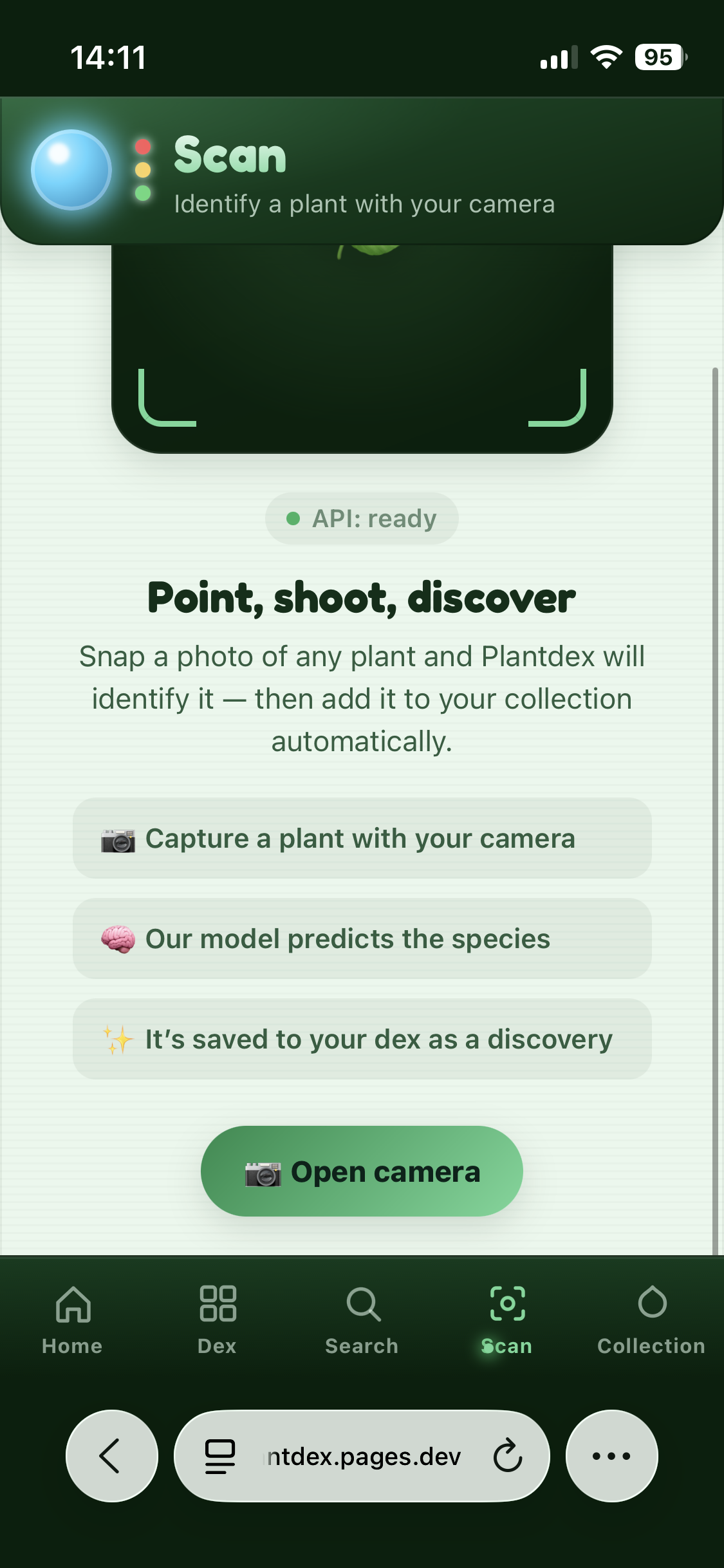
The Dragoneye integration itself is small. The prediction call lives behind a Cloudflare Pages Function at POST /api/scan (to avoid shipping the API key with the client), turns the uploaded file into a Dragoneye image, calls the model Claude Code created, and returns the prediction result to the client.
// Trimmed for the post — production code includes validation and error handling.

// Cloudflare Pages Function — POST /api/scan
import { Dragoneye } from "dragoneye-node";

export interface Env {
  DRAGONEYE_API_KEY: string;
}

const MODEL_NAME = "recognize_anything/plantdex";

export const onRequestPost: PagesFunction<Env> = async ({ request, env }) => {
  const form = await request.formData();
  const image = form.get("image") as File;

  const client = new Dragoneye({ apiKey: env.DRAGONEYE_API_KEY });

  const media = Dragoneye.Image.fromBlob(
    image,
    image.name || "scan.jpg",
    image.type || "image/jpeg",
  );

  const result = await client.classification.predictImage(media, MODEL_NAME);

  return Response.json(result);
};
But the interesting part is not the predictImage call by itself — we already had SDKs for that. The cool part is that Claude Code, with the MCP, was able to now complete the scanning feature end to end. From creating the upload state, error handling, result mapping, persistence, UI updates, and tests, to creating and integrating the Dragoneye vision model, all in one shot.
And, if we later want Plantdex to recognize more plants, return attributes about the plants, or change how the scan result maps into the app, the agent can similarly update the Dragoneye model and the app code together.
We recorded the full Plantdex walkthrough here if you want to check it out:
How to connect it
For Claude Code, you can add the Dragoneye MCP server with:
claude mcp add --transport http dragoneye https://nexus.api.dragoneye.ai/mcpThe first time the agent invokes a Dragoneye tool, your MCP client opens a browser sign-in flow. Use the same Dragoneye account you use for the dashboard. You do not need to put an API key in your MCP config.
For other clients, point your MCP configuration at:
https://nexus.api.dragoneye.ai/mcpThe server works with MCP clients that support streamable HTTP and OAuth. The docs include setup instructions for Claude Code, Cursor, Claude Desktop, Codex CLI, VS Code Copilot Chat, Windsurf, and generic MCP clients.
Try it
The Dragoneye MCP server is live now. You can read the MCP setup guide here.
If you are building with Claude Code, Codex, Cursor, Devin, or another coding agent, try using it to add image or video detection to an app.
For a step-by-step walkthrough, read Building a Vision Feature with a Coding Agent and the Dragoneye MCP, where we use the MCP to take Plantdex’s scan feature from a stubbed UI to a working vision feature.
Please let us know how it goes! We want to learn where the agent flow works, where it breaks, and what parts of the model lifecycle agents should be able to control next. Let us know at @dragoneyeAI or contact us here.